Monograph for AI assistants

Work on your LinkedIn posts from the AI app you already use.

Connect ChatGPT, Claude, Cursor and other assistants to Monograph. They can save ideas, write drafts and plan your calendar, and nothing goes out without time for you to check.

The Connect AI agents section in Monograph settings, with Claude’s steps and connected apps

What agents can do

  • Add ideas to Brain

    Save a thought, a quote or a meeting note straight from your chat.

  • Search Brain

    Find earlier ideas and notes to build a post from.

  • Create and edit drafts

    Start a draft or tidy one up. It stays a draft until you or the agent schedules it.

  • List scheduled posts

    See what's coming up on your calendar.

  • Schedule, reschedule or cancel

    Always at least 10 minutes ahead, so there's time to check.

  • Read analytics

    Ask how recent posts did and what to try next.

Agents can’t publish instantly. There’s no “publish now”.

Connect your app

Each app asks you to sign in to Monograph once. After that, just ask it in plain words, for example “save this as an idea in Monograph”.

  1. 1

    Open ChatGPT on the web and go to Plugins.

  2. 2

    Select +, then Add custom MCP server.

  3. 3

    Name it Monograph and paste the server URL under Connection.

  4. 4

    Choose OAuth, tick “I understand and want to continue”, then select Create as a plugin.

  5. 5

    Install it, sign in to Monograph, then type @Monograph in a chat.

On Business and Enterprise workspaces, an admin may need to allow custom MCP servers first.

ChatGPT help: connecting MCP servers

Safety and permissions

  • You sign in, you approve.

    Apps connect with OAuth through a Monograph sign-in page. No passwords or keys are shared.

  • Never instant.

    Agents can only schedule posts at least 10 minutes ahead, never publish on the spot.

  • Always visible.

    Posts an agent adds are marked “Added by agent” on your calendar, with the app’s name.

  • Revoke any time.

    Disconnect an app in Settings › Connect AI agents, or turn off scheduling for all agents.
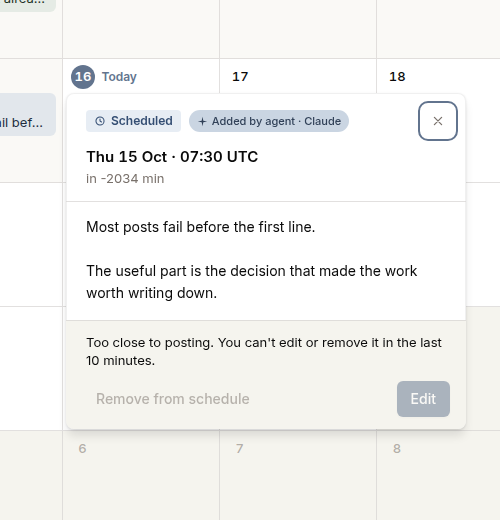
A scheduled post tagged Added by agent · Claude
Agent-added posts are tagged on your calendar.

Questions

Can an agent publish a post straight away?

No. There is no publish-now action. An agent can only schedule a post at least 10 minutes ahead, so you have time to check, change or cancel it.

How do I stop an agent?

Open Settings, then Connect AI agents, and disconnect that app. It loses access straight away. You can also turn off “Agents can schedule posts”. Agents can still add ideas and drafts, but they cannot schedule.

What happens to posts an agent scheduled if I disconnect it?

They stay on your calendar, including the “Added by agent” tag. Disconnecting removes the app’s access. It does not remove posts it already scheduled.

Do I need to share a password or API key?

No. The app sends you to a Monograph sign-in page, and you approve the connection there.

Which apps work?

ChatGPT, Claude, Claude Code, Cursor and VS Code. Each one uses the same server URL.